Asset Dashboard – Asset SLA Status
The Asset SLA Status dashboard provides both a graphical and tabular representation of on-time and overdue asset-related work requests.
Specify any of the following criteria to filter the information displayed and then click FIND.
- Region – Select a value to only include data for a particular region.
- Property – Click the Select link to only include data for a particular property.
- Activity – Select a value to only include data for work types/subTypes within a particular activity group.
- Date Range – Enter two date values to only include data for work orders within the specified date range.
- Asset Group – Select a value to only include data for a particular asset group. Asset Groups define broad categories of assets (for example, Electrical, HVAC, or Lab Equipment).
- Asset Class – Select a value to only include data for a particular asset class. Asset Classes define more narrow categories of assets within groups, for example, in the HVAC group, there may be Boilers, Air Compressors, and Exhaust Fans.
- Asset Rank – Select a value to include data for assets of a particular rank. Asset rank values defines the relative importance of the asset (for example, Critical or Standard).
- Request Filter – Select a value to include data for All, Scheduled, Unscheduled, or Project work requests only.
The results include a bar chart indicating the number of On Time and Overdue requests, and will also include an indication of the percentage of requests that were On Time.
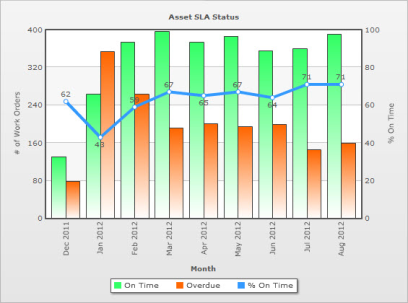
The data is also presented in a table format with work request counts for each month indicating the number of requests that are On Time, Overdue, Pending, Excluded from SLA Calculations, and had No SLA. The final column lists the percentage of requests, each month, that were On Time.
 Click here for more information about On Time/Overdue compliance for response and completion.